Learn how to embed EchoVideo audio, video, or interactive media in Canvas using the Rich Content Editor. This page is best read from top to bottom. Use the links below to go to a specific section.
Table of Contents
What is EchoVideo embedding?
Highlights
- You do not need an EchoVideo Course
- Media can be embedded into Announcements, Assignments, Discussions, Pages, Quizzes, Syllabus.
- Embedded content imports easily to other Canvas courses
- Does not take up Canvas course storage.
- Collects media analytics and can automatically post grades to the Gradebook.
- Students can view videos, search transcripts, and participate in discussions on any device.
What are the advantages of embedding EchoVideo media?
Benefits for instructors and students are shown below.
Faculty Benefits
|
Student Benefits
|
Embed
- Reuse media from previous semesters
- Embedded media imports successfully to other courses
- View all media analytics and participation
Engagement
- Use discussions or add embedded polls
- Enable interactive study aids with AskEcho AI
- Set up automatic gradebook syncing
|
View
- Watch or listen to video lectures in Canvas
- Resume or rewatch segments as much as they need to.
- View media on any device (computer or mobile device).
Accessibility
- Search the transcript
- Turn on closed captions
- Save video player preferences such as playback speed and subtitles across any device.
|
Tip: Recommended Workflow.
- Record and embed content with EchoVideo.
- Monitor student participation via Analytics.
- Have students practice skills and receive instructor or peer feedback in a GoReact assignment.
Learn more about student video assignments. Use EchoVideo to share lessons or class lectures and GoReact to help students practice skills, receive feedback, and use built-in rubric assessments.
How to Embed Media
Embed Existing Media - Quick Steps
- Edit a Canvas content item with the Rich Content Editor.
- Place the cursor where the media should appear.
- Select Apps (plug icon), then View All.
- Select EchoVideo Deep Link Embeds.
- Select Launch Media Picker.
- Search and select the media. Tip: Selecting more than one will create a Playlist.
- Choose the embed options.
- Select Embed.
- Repeat steps 1-8 above to embed additional media.
- Add instructions or expectations in the content window.
- Save or publish the Canvas content.
How to Embed Media - Step by Step instructions
There are two ways to embed media in Canvas:
- In Canvas, create or edit an existing content type (e.g., Announcement, Assignment, Discussion, Page, Quizzes, or Syllabus) which features the Rich Content Editor (RCE). The RCE provides a toolbar with options for adding and formatting text, inserting images, adding tables, and more.
- In the content window, place your cursor where you would like to embed your media or a secure link.
- Open the app menu. Look for the Apps (plug icon) and click "View All.
"
- Click EchoVideo Deep Link Embeds. This tool will allow you to use the automatic gradebook syncing and works with Folders coming soon to EchoVideo.

- Now you will see a menu of options to select from. In the window pop up, click Launch Media Picker.

- Find your media: By default, you will see the most recent content on the right side of the window. Instructors will also see media they own and any media they have "Post" permissions to via a Collection. On the left side, you can filter in several ways to find your media in the Search box type a keyword in, or select the from various Filter options. You can embed audio, video, and interactive media (video with embedded polls) into Canvas. Once you've selected your media, click "Next" (bottom of the window).

- Selecting your media: You can search by keyword or choose other Filter Options, (see image above). After you have located the media, you want to embed. Click the name to select it. Click "Next". Tip: If you select multiple videos, you will be creating a Playlist instead of embedding a single video.

-
Select your Embed options: The media you select shows as a thumbnail with the embedding options* to choose from, (see sample image below). *Embed Options: Choose a Size (640x420 default), Start At (allows the embedded video to start at a specific time instead of the beginning), Autoplay (will enable Automute), *Discussions (allows students to ask questions, comment, endorse others, and upload a content). When you are finished adjusting your embed options, click "Embed" (bottom-right of the window).

- Adding more embedded content: Repeat steps 1-8 above.
- Once you are done embedding your media. Click Save or Save & Publish as appropriate on your Canvas content type.
Embed and Post a Video Link
You can embed a video link instead of embedding a video. The name of your video will be seen when you use the link option.
- In the Canvas content window, place your cursor where you would like to embed your secure link.
- Look for the Apps (plug icon) and click "View All" or select "EchoVideo Deep Link Embeds."
- Select your video that you want to embed.
- In the Embed options window, toggle on the Link option as shown in the image below.
- Click Embed (bottom-right) of the window.

- Once the content type is published, a link to the video with the name will display.
Tip: A new browser tab will automatically open when students or others click the embedded link.
Remove an Embedded Video or Link
You’ve recorded a new version of a lecture and want to replace the old one. To remove an embedded video or link, use one of two methods depending on how you embedded it. Begin by editing the Page, Assignment, Discussion, Announcement, Quiz, or Syllabus content as normal.
- Embedded a video player: Put your cursor at bottom right corner of the embedded video, press backspace on your keyboard. The video is removed. Repeat the steps as needed.
- Embedded video link: Click within the link you want to remove then select "Remove Link." The link to the video is removed.
Tip: Alternatively, you can also highlight the link then press Backspace on your keyboard.

Additional Embedding Options
The easy embed tool also let's you embed playlists, create content, and upload content:
Engagement and Grading Participation
Discussions
-
Allow students to ask questions, reply, and participate anonymously (all participation is time-stamped). Only instructors can see anonymous posts. Read article about viewing and monitoring Discussions.
Analytics
- EchoVideo gathers who has watched or interacted with your media or submitted polls. The video views are updated hourly and poll responses are in real-time. Read article: View analytics for all media.
Gradebook Syncing (automatic)
-
Gradebook syncing occurs automatically after you configure at least one grading metric in EchoVideo. When you do this, EchoVideo will automatically create the columns in your gradebook. Please make sure to set the assignments where the videos are embedded, as shown below.
Set the Assignment settings for Gradebook Syncing
- Points: 0
- Display Grade: Not Graded
- Submission Type: No Submission
- Due Date: Add a due date so it appears on the student To-Do list.
If you are new to setting up gradebook metrics, view the resources below:
Known issue: It looks like you have no content available for gradebook syncing. This means that you embedded media into an Assignment using the legacy embed tool.
Solution: You will need to remove the embedded media and re-embed them.
Frequently Asked Questions on Embedding Media
Below is a list of frequently asked questions on embedding your videos, click the question to view the answer.
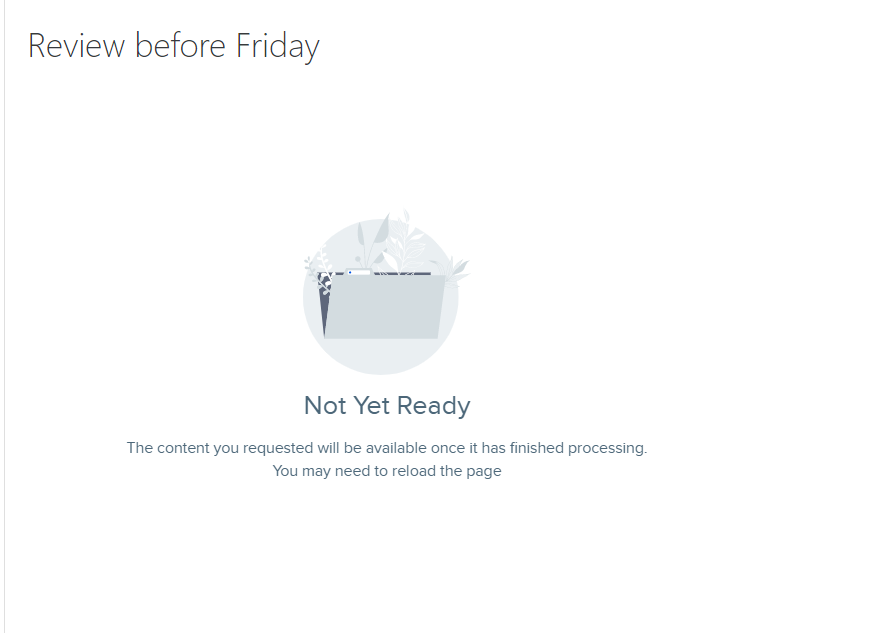
The video placeholder says Not Yet Ready
instead of showing my embedded video
When you embed media that has not finished processing on the EchoVideo server, you will see a preview placeholder "Not Yet Ready," see sample image below. Once your video has finished processing in your library, the embedded video will appear. As a reminder, anytime that you create new recordings or upload media (audio, video, PowerPoint) you will receive an email letting you know the media is available in your Library.
I'm recording personal lectures and not recording in a classroom; can I embed the new videos I've recorded?
Yes, record your videos as you normally would with either Universal Capture Software or Browser Capture.
Do I need an EchoVideo course if I am only recording lectures on my computer?
It depends if you are using the Active Learning tools you will need an EchoVideo course. If you are simply recording videos on your computer, SVSU ITS recommends embedding your videos.
I'm reusing videos from a previous semester, will videos import to other Canvas courses?
Yes, if you used the media embed button all videos will be imported to other Canvas courses.
I've uploaded videos made outside of EchoVideo, can I embed them in Canvas?
Yes, any videos that are in your personal Library can be embedded in Canvas.
Can I embed videos that have been shared with me by another instructor?
Yes, if videos have been shared with you by other instructors and you have permission, you can embed those videos in Canvas. You don't need to be the owner of them.
I have shared videos with another instructor using EchoVideo Collections, can they embed the videos to use in their classes?
Yes, if you have given them Post permission. If you are new to Collections, it is a feature that allows instructors to share media from within their library.
Back to the top